Reverse Posted Batches
Use the following instructions to reverse an entire batch of donations. Reversing a posted donations batch will essentially delete every single donation contained within the batch you selected.
Note the difference:
If you need to reverse an individual donation without reversing the entire batch, you need to Reverse a Donation instead. If you need to alter or correct individual donations in the batch, you need to Correct a Donation instead. If you need to correct the date or code of an entire batch of donations, you need to Correct Posted Batches instead.
- Click Donations in the Button Bar at the top of the screen
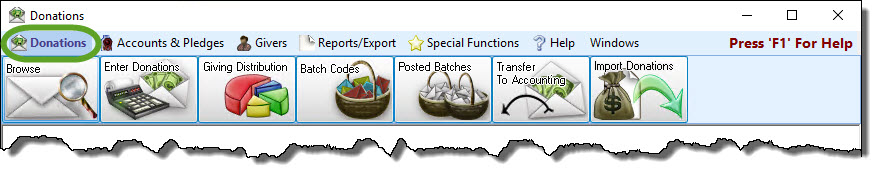
- Click the Posted Batches button:

- If needed, change the Date Range:
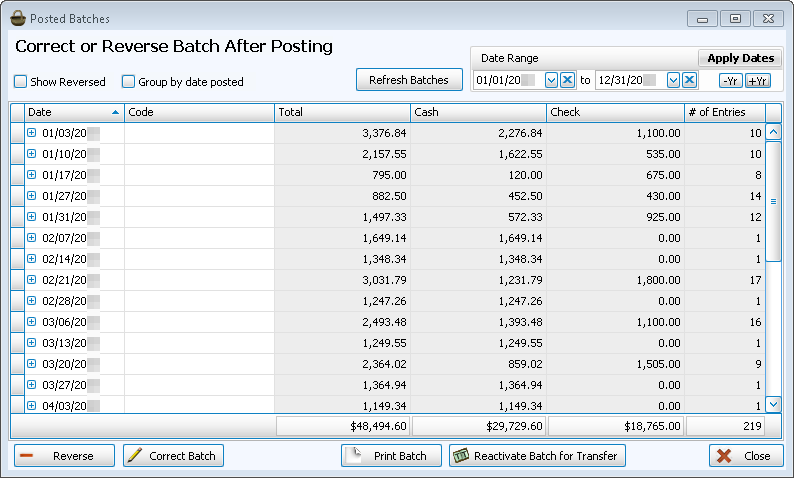
- Click the line that identifies the information about the batch that you want to reverse.
Note:
Click the expand button to the left of each row to view details (when expanded it will become a
  collapse button).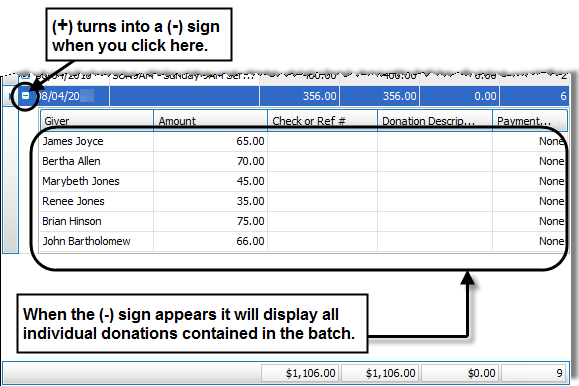
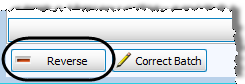
- Click the Reverse button in the bottom left corner of the screen.
Note:
Reversals are used in place of deletions, this allows an iron-clad audit history to be maintained. Reversing a transaction is permanent; it is not possible to reverse a reversal. - The Reverse Donation screen appears and gives you the following options:

- Date occurred from original transaction: Click to mark the
 radio button next to this option if you would like a reversal transaction for each reversed donation in the batch to contain the same date as each donation originally posted.
 - Today: Click to mark the radio button next to this option if you would like a reversal transaction for each reversed donation in the batch to contain today's date.
- Other date: Click to mark the radio button next to this option if you would like a reversal transaction for each reversed donation to contain a different date. Then, click the
 dropdown button and select the desired date.
 - In the Donation Comments field, enter any additional information that you would like to attach to the donation to be reversed.
- If you are reversing the whole batch due to NSF reasons, place a checkmark in the Reversed due to non-sufficient funds (NSF) box.

- Click the OK button to confirm without transferring to Accounting, or OK & Transfer to transfer the reversal to Accounting after confirming the reversal. A message will prompt you to verify the permanent reversal of the selected batch.
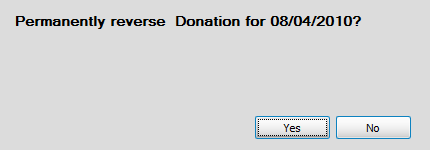
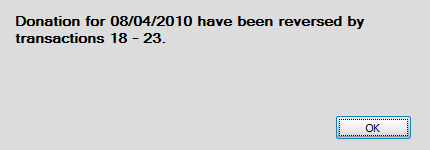
- Click Yes and a message will show you the transaction numbers for each donation reversal in the batch.
Note:
If afterward, you would like to view the transactions you reversed in the batch, make sure that you take note of the transaction numbers. You can then look up the transactions by Transaction # on the Browse Donations screen. - Click OK and the batch will disappear from the list of Posted Batches.
When you are finished, you can either choose another batch to reverse or correct, or exit the screen by clicking the Close button in the bottom right corner of the Posted Batches screen.